Informatics account
If you attend the OU's Computer Service Introduction, you can ignore this site. It's easier to go through these steps together during the OU week.
Your informatics account (or iRZ account, for Informatik-Rechenzentrum, German for "Informatics Computing Centre") is needed to use the computers at the Informatikum. Together with your account, you receive access to private storage for anything university-related, like your exercise solutions or project code. You can access your Informatics account from home, which we will do now.
In case you run into problems with the technical infrastructure at the Informatikum, you can ask the iRZ for help (more information at www.inf.uni-hamburg.de/inst/irz.html).
Preparation
Now consult the permission sheet mentioned earlier. There you find your Informatics username as well as your initial password, which you will need to log in. Once logged in, it's obligatory to change your password (see below).
Access via the pool computers at Informatikum
This section is relevant if you have physical access to one of the computers at the Informatikum. In other cases, continue with Access via SSH.
The pool computers at the Informatikum usually have both Windows and Debian Linux installed. If you are asked to select the operating system you want to use, please choose "Debian" for now. Then, log in using the username and password from the permission sheet.
Once logged in, open a terminal window. You can search for "Terminal" in the applications menu.
Access via SSH
It is also possible to access your Informatics account from home via SSH. SSH is a protocol for accessing a computer remotely, which usually runs with Linux over the internet. You can find a detailed article (in German) concerning the SSH infrastructure at the University of Hamburg in the mafiasi wiki at mafiasi.de/SSH.
In the following paragraphs, we are going to give you a quick guide on how to log in via SSH.
Windows
For using OpenSSH on Windows, Microsoft provides the following instructions.
Once you have OpenSSH running, move on to Logging in.
Linux, Mac, and other Unixoid systems
If you are using a Unix-based system, it will most likely have SSH pre-installed. You can open a Terminal window and proceed as described below under Logging in.
Logging in
Once you have opened a shell where the ssh command is available, enter:
ssh 6surname@rzssh1.informatik.uni-hamburg.de
(replace 6surname with your actual Informatics username)
If asked whether you trust the server's fingerprint, verify that it looks
like the following and type yes:
SHA256:da+2PJib3dWUM8WeLIU9DMtllI1yGoIPP4yAZiG+OXo
When you are requested to enter your password, your typing will not be visualized.
This is a security measure to hide your password length from people who may be potentially watching. You just have to trust that the characters appear and press Enter at the end.
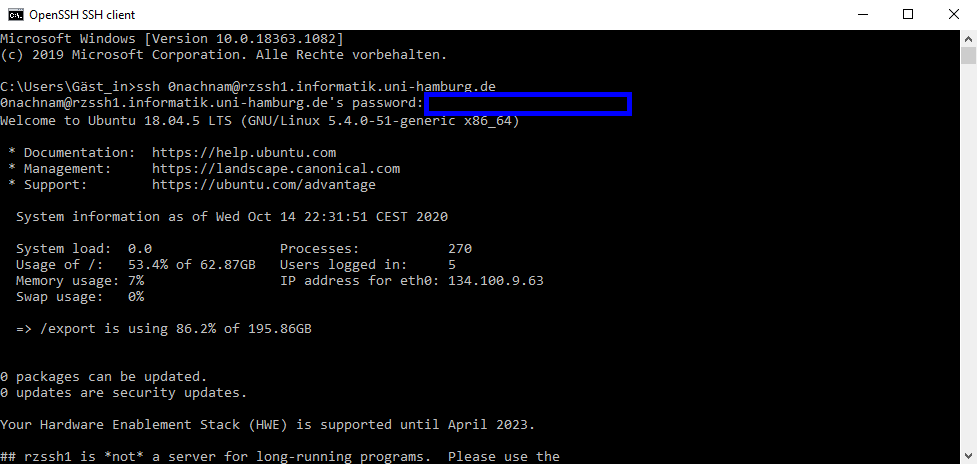
Fig. 6: You have to type your password in the area where the blue frame is displayed. Nothing will be displayed while typing.
Changing your password
Once you have successfully logged in to the Informatikum, you have an entire Linux shell at your fingertips. Learning how to use it someday is worthwhile, as you will almost inevitably need it at some point in your studies and/or later work life. Linux is incredibly popular amongst Informatics students, and many students at the Informatikum are very willing to help you use it.
But for now, we only want to change your password.
One last hint before actually changing your password: It's always a good idea to open an editor window and check if the keyboard layout is really set as expected (especially regarding special characters, etc.)!
To change your password, type passwd and confirm by hitting RETURN.
You need to enter your current password and then your new password (twice).
Again, you won't be able to see any characters appear while typing.
Your new password has to be at least eight characters long, with the additional requirement of not being a common word.
Afterward, you can close the (SSH-)session via the exit command or by simply closing the window.
Sending back the permission sheet
Now, you need the permission sheet one last time. If not done already, fill out the document and send it back to the iRZ by simply replying to the e-mail. As you have just changed your password, you don't need to be concerned about sending back the sheet with your initial password in clear text.